Cloud Data Backup: Best Solutions for Storage
Explore cloud data backup solutions for home and business, compare features, pricing, and choose the right secure backup today.
Cloud Data Backup: Best Solutions for Storage
If you are choosing a cloud backup solution, you are usually trying to solve a very practical problem: how to keep critical files safe without creating more complexity for your team.
For solo founders, startups, small businesses, and growing organizations, that challenge often looks the same. Files are scattered across laptops, shared drives, email threads, and design folders. Images live in one tool, contracts in another, and backups may or may not be happening at all. When something gets deleted, corrupted, overwritten, or locked by ransomware, the real cost is not just the file. It is lost time, broken workflows, delayed client delivery, and stress.
That is why cloud data backup matters. The best systems do more than copy files to the cloud. They protect business continuity, reduce operational risk, and make recovery fast. And when paired with a simple file management platform like AssetHQ, they also make your live files easier to organize, share, preview, and control day to day.
What the top-ranking articles get right - and what they miss
The leading competitor articles agree on a few important points:
- cloud backup is essential for offsite protection
- local backup alone is not enough
- iDrive, Acronis, Backblaze, and similar tools dominate comparison lists
- pricing, device support, and restore speed matter
- version history and security features are key buying factors
Those are all valid. But they also leave some gaps.
The biggest content gaps in competitor coverage
Most competitor roundups focus heavily on backup vendors, but gloss over the broader workflow reality teams face:
- Backup is not the same as active file management
A backup tool protects data, but it usually does not help teams organize, preview, share, or collaborate on files efficiently. - The cost of chaos is underexplained
Poor file naming, messy folder structures, unclear permissions, and scattered storage create risk long before data loss happens. - Home and business needs are often blended together
A freelancer backing up photos and documents has different priorities than a growing team sharing assets across departments. - Restore experience gets less attention than backup speed
Many services are good at uploading data. Fewer are genuinely convenient when you need to find and recover something quickly. - They rarely discuss the ideal stack
The smartest setup is often not “one tool does everything.” It is a backup platform plus a clean file management layer, which is where AssetHQ fits naturally.
What cloud backup actually means
Cloud backup is the process of copying files, folders, systems, or entire devices to remote storage so they can be restored later if something goes wrong.
That “something” can include:
- accidental deletion
- overwritten files
- laptop failure
- ransomware
- office hardware loss
- sync mistakes
- natural disasters
- employee offboarding issues
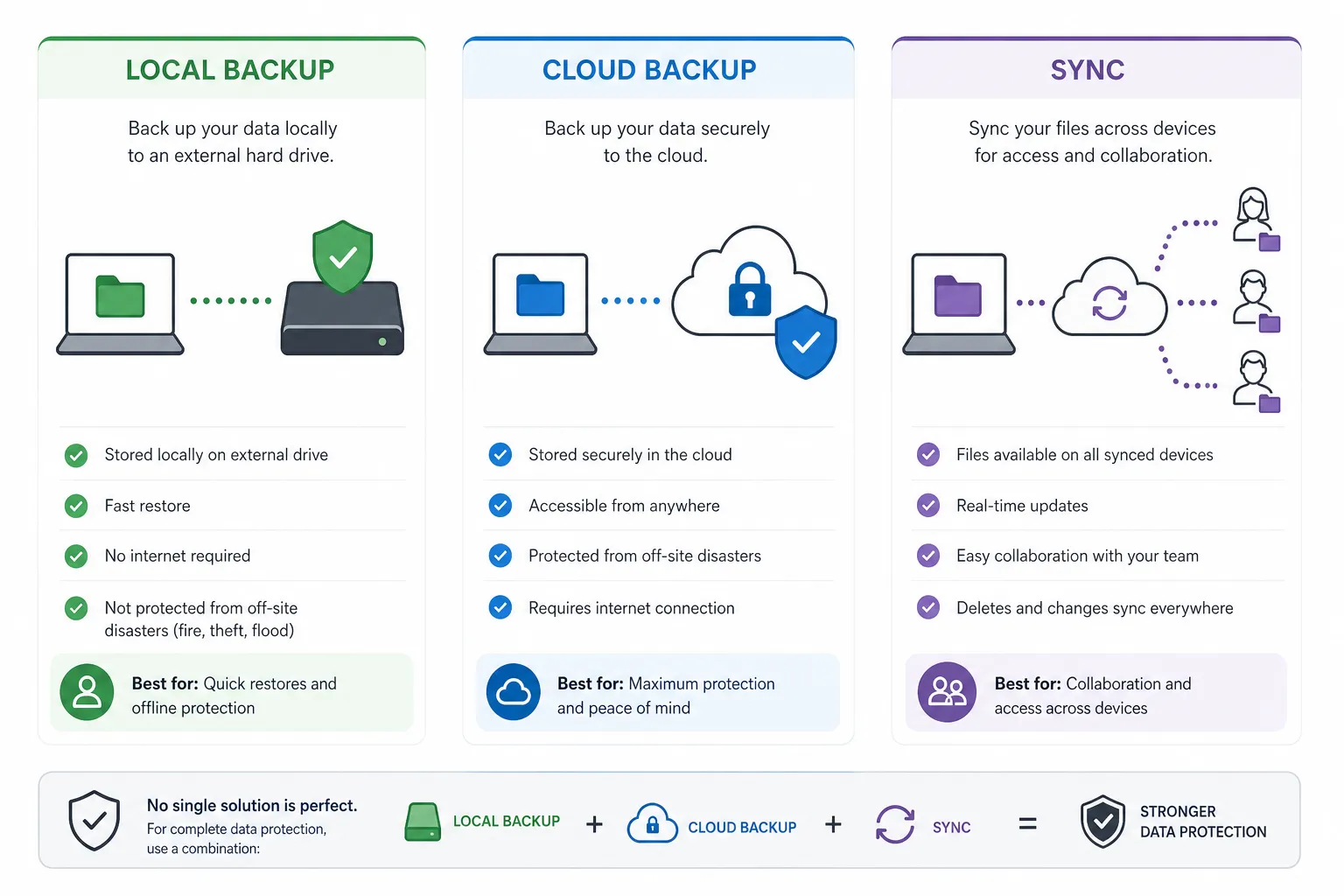
A proper cloud backup system is different from ordinary cloud storage. Services built mainly for syncing can mirror deletions and changes across devices. If a file is deleted locally, it may disappear everywhere. Backup systems are designed to preserve recoverable versions and historical copies.
Cloud backup vs cloud storage vs sync
Type | Main purpose | Best for | Key risk |
|---|---|---|---|
Cloud backup | Recovery after loss or damage | Protected copies of files, systems, devices | Recovery may be slower if setup is weak |
Cloud storage | Centralized access to files | Storing and accessing active documents | Not always true backup |
Sync tools | Keep files updated across devices | Team access and collaboration | Deletions or bad edits can propagate |
Why cloud backup is now a basic requirement, not an optional extra
Cloud backup used to feel like a nice-to-have. It no longer is.
"93% of ransomware attacks target backups, and in 75% of these cases, attackers successfully compromise the victims' ability to recover data." - Computer Weekly citing Veeam
That stat highlights an important truth: simply having “a backup” is not enough. You need a backup plan that is secure, monitored, and recoverable.
"Only 45% of organizations adhere to the 3-2-1 backup rule, leaving a significant portion vulnerable to data loss." - ITPro citing Cohesity
For small businesses, the lesson is simple. A resilient setup should include:
- your working files in an organized system
- automatic cloud backup
- access control and sharing discipline
- version history where possible
- at least one recovery path that is easy to test
The best cloud backup solutions for different needs
There is no single perfect answer for everyone. The right choice depends on whether you are protecting a home computer, a founder-led business, a distributed team, or servers and SaaS data.
Best for most users: iDrive
iDrive is frequently ranked as the best overall option because it balances affordability, multi-device support, and broad feature coverage. It works well for users who want online backup solutions across multiple computers and mobile devices without paying enterprise prices.
Best for:
- households with multiple devices
- freelancers and consultants
- small teams wanting broad coverage
- users who also want local backup support
Strengths:
- good value per terabyte
- supports multiple devices on one account
- useful for both personal and business use
- includes backup for more than just one machine
Watch-outs:
- interface may feel less streamlined than simpler products
- advanced features can be more than some home users need
Best for security-heavy backup and recovery: Acronis
Acronis is strong when you want advanced backup software plus cyber protection features. It is often positioned toward users who value image backups, disaster recovery, ransomware defense, and system-level control.
Best for:
- advanced users
- IT-conscious small businesses
- businesses needing more than basic file backup
Strengths:
- system image backups
- strong security positioning
- broad recovery options
- good for full-machine protection
Watch-outs:
- can be more complex than lightweight alternatives
- pricing can climb with higher-end use cases
Best for simplicity: Backblaze
Backblaze is popular because it reduces decision fatigue. It is built around easy setup and straightforward online backup storage for one computer.
Best for:
- solo professionals
- home users
- people who want “set it and forget it”
Strengths:
- simple onboarding
- unlimited backup on supported plans
- low-friction experience
Watch-outs:
- fewer management controls than more robust platforms
- less ideal for teams that need structured collaboration
Best for teams that need control and organization: AssetHQ + backup provider
This is the setup many growing companies actually need.
AssetHQ is not trying to be a bloated, enterprise-heavy backup suite. Instead, it gives teams a simple and dependable place to store, organize, manage, preview, and share digital assets. That matters because most file-related problems begin as organization problems before they become backup problems.
Best for:
- startups
- agencies
- operations teams
- marketing teams
- founders managing documents, images, and internal files
Why this stack works:
- AssetHQ keeps active files easy to find and govern
- a separate cloud backup provider protects those files against loss
- secure sharing with expiring links and access control reduces exposure
- fast uploads and image preview features improve day-to-day use
- flat, affordable pricing keeps scaling predictable
If your current tool is either too simplistic for collaboration or too complicated for normal humans to use, AssetHQ fills the gap beautifully.
How to choose the best cloud backup solution
The best cloud backup providers are not just the ones with the longest feature list. They are the ones that fit your operating reality.
1. Start with what you are protecting
Different backup plans are designed for different scopes.
What you need to protect | Best fit |
|---|---|
One laptop with personal files | cloud backup services for home |
Several devices for one user | multi-device personal backup |
Shared business files and folders | business cloud backup + organized file platform |
Servers and infrastructure | server cloud backup solutions |
Google Workspace or Microsoft 365 | cloud to cloud backup solutions |
Photos, marketing assets, docs, and shared files | AssetHQ for organization + cloud backup for recovery |
2. Decide whether you need file backup or full system backup
If all you need is file recovery, a simple cloud storage backup or folder-based solution may be enough.
If you need to restore a machine after total failure, look for:
- disk image backup
- bare-metal restore
- version retention
- ransomware recovery support
3. Look closely at restore experience
A product may advertise automatic cloud backup services, but recovery is what matters in a crisis.
Ask:
- Can I restore a single file quickly?
- Can I recover a folder structure intact?
- Is version history clear?
- How long are deleted files retained?
- Can I restore without technical support?
4. Check pricing beyond the first year
Many articles mention low intro prices but do not stress long-term costs enough.
When evaluating cloud backup services pricing, compare:
- first-year vs renewal rate
- storage caps
- number of users included
- number of devices included
- egress or restore fees
- hidden feature gates
5. Consider everyday usability, not just disaster recovery
This is where many cloud backup companies fall short. Backup may be solid, but file access is clumsy. Teams still need to:
- browse folders easily
- preview images quickly
- share files securely
- manage permissions
- onboard teammates without training headaches
That is where AssetHQ adds major value. It gives you clean, intuitive file management for the files your business uses every day, while your chosen cloud backup provider handles the recovery layer.
What makes a cloud backup setup truly strong
A strong setup usually combines three layers:
Layer 1: Active file management
Your team needs a dependable place to store and work with documents, images, and files.
AssetHQ supports this layer with:
- intuitive folder structure
- secure file sharing
- expiring links
- access controls
- image preview and management
- fast upload and access
- team collaboration
- scalable organization
- enterprise-grade secure storage
- straightforward pricing
Layer 2: Backup and recovery
This is your safety net when files are lost, corrupted, deleted, or attacked.
Layer 3: Policy and permissions
The right people need the right access, and no more. Good permissions reduce both mistakes and security risk.
Best cloud backup solutions by use case
For home users
The best cloud backup solutions for home focus on simplicity, automatic uploads, and low maintenance. If your main need is protecting family documents, personal archives, and photos, prioritize:
- easy setup
- automatic scheduling
- affordable plans
- version history
- enough storage for growth
Backblaze and iDrive are often strong fits here.
For freelancers and solo founders
Solo operators need protection without complexity. The sweet spot is often:
- easy automated backups
- organized online file storage
- secure client file sharing
- affordable flat pricing
This is where combining a backup service with AssetHQ becomes powerful. You keep your working files clean and client-ready while also protecting them with offsite backup.
For small businesses
Cloud backup services for business should support continuity, not just storage. Look for:
- multiple users or devices
- permission controls
- versioning
- recovery options
- clear admin visibility
- simple collaboration
Small businesses often do best with a practical stack: AssetHQ for file organization and sharing + a dedicated backup solution for data protection.
For growing teams
As teams scale, file chaos increases faster than most leaders expect. Version confusion, duplicate uploads, and unclear ownership can derail collaboration. Growing teams benefit from:
- structured storage
- folder consistency
- controlled access
- secure sharing workflows
- image and document visibility
- scalable file organization
Again, that is a strong case for AssetHQ as the operational layer, with cloud backup systems protecting the underlying data.
For server and infrastructure protection
Server cloud backup solutions need a different standard. They must support:
- system-level restore
- backups for virtual machines
- broader retention policies
- policy-based automation
- fast RTO and RPO targets
Acronis and other infrastructure-oriented platforms make more sense here than lightweight file backup tools.
Common mistakes people make when buying cloud backup
Assuming cloud storage is the same as backup
It is not. Storing files in the cloud does not automatically mean you have safe, recoverable historical copies.
Choosing based on cheapest headline price
Cheap cloud backup storage can be useful, but only if restore limits, retention rules, and device caps still meet your needs.
Ignoring permissions and file governance
If anyone can edit, delete, or overshare assets, your risk remains high even with backup in place.
Not testing restores
A backup that has never been restored is an assumption, not a strategy.
Using one bloated tool for everything
Many teams are better served by using:
- one simple platform for live file organization and collaboration
- one reliable service for backup and recovery
That keeps workflows cleaner and reduces tool fatigue.
A practical comparison table
Need | Best approach | Why |
|---|---|---|
Basic home backup | Backblaze or iDrive | Easy setup and strong value |
Multi-device family backup | iDrive | Good storage-to-price ratio |
Advanced system recovery | Acronis | Strong imaging and recovery options |
Team file organization | AssetHQ | Clean file management and sharing |
Startup file operations + backup | AssetHQ + iDrive/Acronis | Best mix of usability and resilience |
Shared image and document library | AssetHQ | Better previews, structure, and access control |
SaaS backup | Dedicated cloud to cloud backup solutions | Protects data beyond endpoints |
How AssetHQ fits into a modern backup strategy
AssetHQ is especially useful for businesses that are drowning in file clutter but do not want to adopt an overly complex DAM or enterprise content system.
Where AssetHQ shines
AssetHQ helps teams manage the files they use most often:
- documents
- marketing images
- brand assets
- project files
- internal resources
- client deliverables
Why this matters for backup too
When your files are organized, tagged by structure, easy to preview, and securely shared, you reduce the everyday risks that often lead to loss or confusion in the first place.
With AssetHQ, you get:
- a simple, intuitive system that people actually use
- a scalable structure that works for solo users and teams
- secure sharing without messy workarounds
- enterprise-grade security without enterprise heaviness
- affordable pricing with no hidden surprises
That makes AssetHQ an excellent complement to cloud backup software. One handles working file clarity. The other handles disaster recovery.
Recommended setup for most small businesses
For many small businesses, the most practical stack looks like this:
Option A: Simple and affordable
- AssetHQ for file storage, organization, image previews, and secure sharing
- iDrive for automatic cloud backup across devices
Option B: Security-forward
- AssetHQ for operational file management and collaboration
- Acronis for backup cloud storage, image backup, and advanced recovery
Option C: Solo founder minimal stack
- AssetHQ for keeping all client-facing and internal files organized
- Backblaze for low-friction endpoint backup
Final verdict
The best cloud data backup solution is not just the one with the biggest brand name or the longest checklist. It is the one that gives you reliable recovery, predictable pricing, and less operational chaos.
If you want pure backup, options like iDrive, Acronis, and Backblaze are strong choices depending on your needs.
But if you want a system that actually supports how modern teams work with files every day, you should think bigger than backup alone. You need:
- dependable offsite protection
- simple file organization
- secure sharing
- clear permissions
- fast access to documents and images
- room to grow without tool sprawl
That is where AssetHQ stands out.
AssetHQ gives solo founders, small businesses, startups, and growing teams a better way to manage digital assets without the bloat. It is simple, secure, scalable, and affordable. Pair it with the right backup provider, and you get a storage strategy that is both resilient and easy to live with.
If your team is ready to replace scattered folders and fragile sharing with a more organized, secure system, try AssetHQ and build your backup strategy on top of a file management foundation that actually makes sense.
FAQ
What are the most reliable cloud storage solutions for backups?
The most reliable options depend on your needs, but iDrive, Acronis, and Backblaze are consistently strong choices for backup and recovery. For businesses that also need better file organization and secure collaboration, pairing a backup tool with AssetHQ creates a more complete solution.
What is one downside of cloud backup?
One common downside is that recovery can be slower than local restore, especially for large data sets or full-system recovery. That is why the best strategy combines cloud backup with organized file management and, when possible, an additional local backup layer.
Related Posts

Brand Asset Management Software for Growing Teams
Discover brand asset management software for growing teams and learn how to organize files, share securely, and scale with ease.
min read
Cloud Based Digital Asset Management Benefits
Explore cloud based digital asset management benefits for secure file sharing, simpler teamwork, and organized growth. Try it today now
min read
File Sharing and Storage Made Simple for Teams
Discover file sharing and storage made simple for teams with secure access, better organization, and faster collaboration. Try AssetHQ!
min read