Create a Shared Folder for Team Collaboration
Learn how to create a shared folder, choose shared drives, organize team files securely, and improve collaboration with ease.
Create a Shared Folder for Team Collaboration
If your team is constantly asking, “Where’s the latest version?” or “Who has access to this file?”, it’s time to fix the system - not just the symptoms.
A well-built shared folder gives your team one dependable place to store documents, images, and working files. It reduces duplicate uploads, prevents version confusion, and makes collaboration faster. But not every situation calls for the same setup. In some cases, you should create a shared folder for a project or department. In others, you need to create a shared drive-style structure with broader ownership, long-term governance, and clearer permissions.
For solo founders, startups, and growing teams, the real challenge is finding a system that is secure and structured without being bloated or expensive. That’s where a simple platform matters. AssetHQ helps teams organize files with intuitive folders, preview images quickly, share files securely with expiring links and access controls, and scale from a few users to a growing organization without unnecessary complexity.
"Knowledge workers spend approximately 1.8 hours per day searching for and gathering information - about 9 hours per week." - McKinsey
"Organizations using Microsoft Teams experienced a 17.7% reduction in the time required to make decisions." - Forrester Consulting
Why shared folders still matter
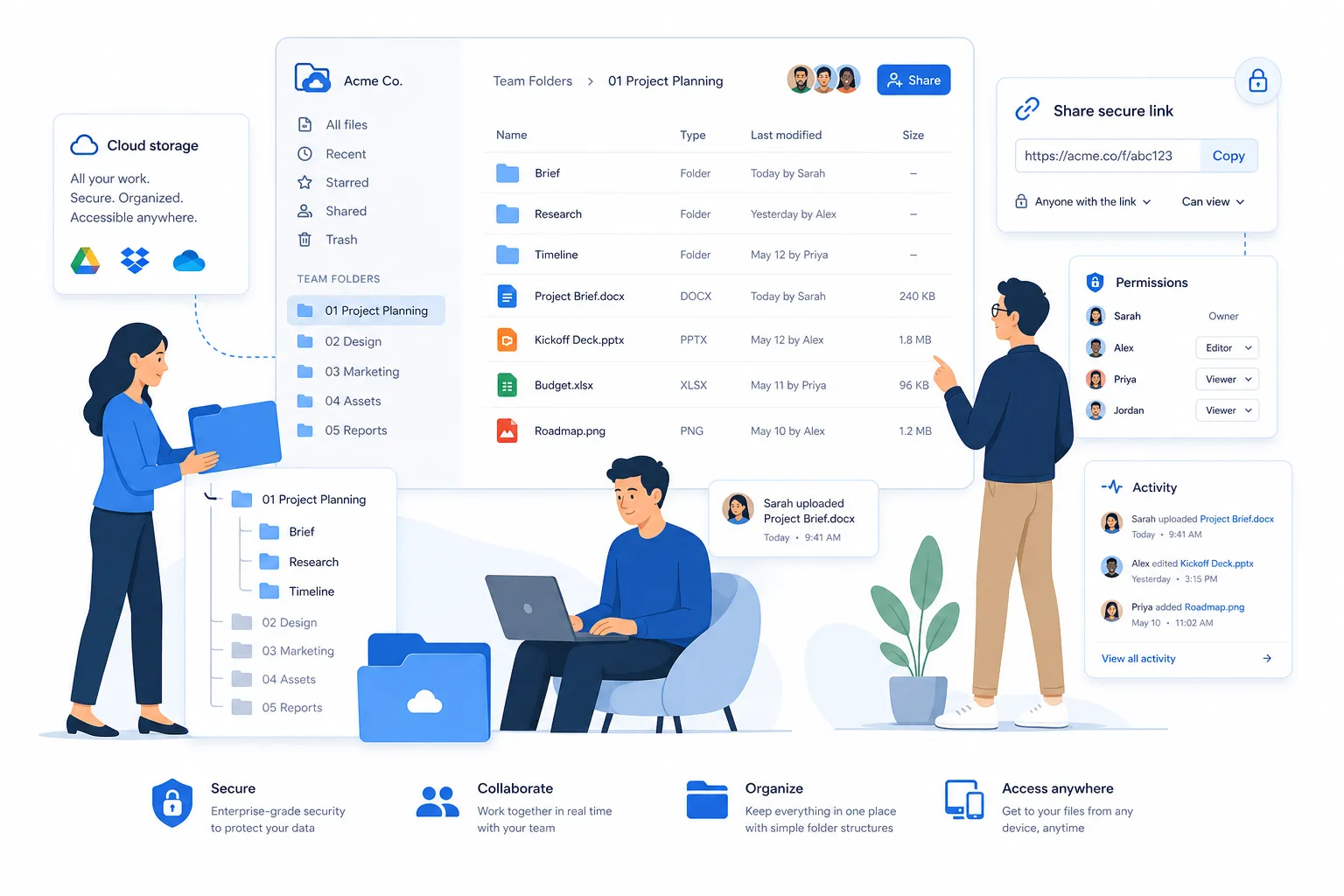
A shared folder is the simplest way to centralize collaboration around a set of files. Everyone with permission can access the same content, work from the same source, and avoid the chaos of files scattered across email threads, desktops, and chat attachments.
That matters most when your team needs to:
- collaborate on the same documents
- share brand assets and images
- keep project files in one place
- control who can view, edit, or download content
- create a repeatable structure for new work
For small businesses and lean teams, simplicity wins. If people can’t understand where files live in the first 30 seconds, they’ll create workarounds - and your organization breaks down fast.
What competitor guides usually explain - and what they miss
Most guides from Microsoft Teams, university IT resources, and Dropbox cover the basics well:
- how to upload files
- how to share folders
- how permissions work
- where files are stored
- how to collaborate in channels or shared spaces
But they often gloss over the practical questions growing teams actually ask:
Should I use a shared folder or a shared drive-style setup?
Many articles mention both, but few help you choose the right one based on team size, ownership, and file lifespan.
How should I structure folders so they stay usable over time?
Uploading files is easy. Designing a structure people will still follow six months later is harder.
What permissions model prevents future confusion?
Basic tutorials tell you how to share. Better strategy tells you when to allow editing, when to make links expire, and when to restrict access by role.
What works best for image-heavy teams?
Design, marketing, operations, and content teams need quick preview and browsing, not just a raw file list.
How do you keep file management simple without moving into enterprise software overload?
That’s where platforms like AssetHQ stand out: secure, fast, organized, and collaborative without forcing small teams into heavy, overbuilt systems.
What a shared folder actually is
A shared folder is a folder that multiple people can access based on permissions you define. Depending on the platform, those permissions may include:
- view-only access
- comment or review access
- edit access
- upload access
- download restrictions
- link-based access with expiration dates
- admin-only management rights
The value of a shared folder is not just storage. It’s coordination. The folder becomes a shared workspace for related assets.
Examples include:
Use Case | Typical Shared Folder |
|---|---|
Marketing | Campaign assets, logos, social graphics, ad creatives |
Sales | Pitch decks, pricing sheets, case studies |
HR | Onboarding docs, policy templates, training files |
Operations | SOPs, vendor forms, internal process docs |
Product | Specs, mockups, release notes, research files |
When to create a shared folder
A shared folder is usually the right choice when the scope is specific and the people involved are clear.
Use a shared folder when:
- the files belong to one project, client, or team
- the collaborator list is relatively stable
- the folder needs a clear purpose
- access should be limited to a defined group
- you want fast setup with minimal admin overhead
For example, if your marketing team needs one place for Q4 campaign assets, a shared folder is ideal. You can group images, approved copy, PDFs, and final exports in one place and control access cleanly.
When to create a shared drive instead
A shared drive-style setup makes more sense when files should belong to the organization, not an individual or temporary group.
Choose a shared drive structure when:
- multiple teams need ongoing access
- ownership must remain with the business
- files should outlive any one employee
- you need broader governance and standardized permissions
- several shared folders will sit under one master structure
Think of it this way:
- a shared folder solves a collaboration need
- a shared drive solves an organizational need
If you run a growing company with separate folders for finance, marketing, product, customer support, and operations, you may need a drive-level system with consistent naming, access groups, and retention rules.
Shared folder vs shared drive
Here’s the simplest comparison:
Factor | Shared Folder | Shared Drive |
|---|---|---|
Best for | Projects, teams, clients | Company-wide structure |
Ownership | Often tied to a user or small group | Owned by the organization |
Scope | Narrow and focused | Broad and persistent |
Permissions | Easier, lighter | More controlled and layered |
Setup speed | Fast | More planning required |
Scalability | Good for small-medium collaboration | Better for larger structures |
For many small businesses, the smartest path is to start with a strong shared folder system and only expand into a shared drive model when scale demands it.
How to create a shared folder that actually works
Creating the folder is easy. Creating one that stays useful is the real goal.
1. Start with one clear purpose
Every shared folder should answer one question: what belongs here?
Bad example: Team Files
Better example: Marketing / 2026 Product Launch / Final Assets
If the folder’s purpose is vague, people will dump everything into it.
2. Keep the top-level structure simple
Avoid building a maze. Most teams only need a few clear categories.
A practical structure might look like:
- Briefs
- Working Files
- Final Files
- Images
- Reference
- Archive
This makes navigation intuitive and reduces accidental duplication.
3. Set permissions before sharing widely
Not everyone needs edit access.
A better model is:
- editors for active contributors
- view-only access for stakeholders
- admin rights for team leads
- expiring links for external reviewers or clients
AssetHQ is especially strong here because secure file sharing doesn’t have to be complicated. You can keep folders organized while still controlling who sees what, how long links stay active, and whether outside users can access assets.
4. Use naming conventions people can follow
Your system should be boring in the best way: consistent, obvious, and hard to misuse.
Examples:
2026-Launch-Brief-v1Brand-Guidelines-FinalClientName-Contract-SignedHomepage-Hero-Image-Approved
5. Build in an archive from day one
Without an archive, every active folder turns into a graveyard.
Move outdated material into an Archive folder on a regular schedule so current files stay easy to find.
A simple shared folder framework for growing teams
If you want a repeatable model, use this:
Department level
- Marketing
- Sales
- Operations
- Finance
- HR
Inside each department
- Active Projects
- Templates
- Final Assets
- Shared Resources
- Archive
Inside each project
- Briefs
- Drafts
- Approved
- Exports
- Reference
This gives you enough structure to scale while staying easy for new team members to understand.
How Microsoft Teams handles shared collaboration
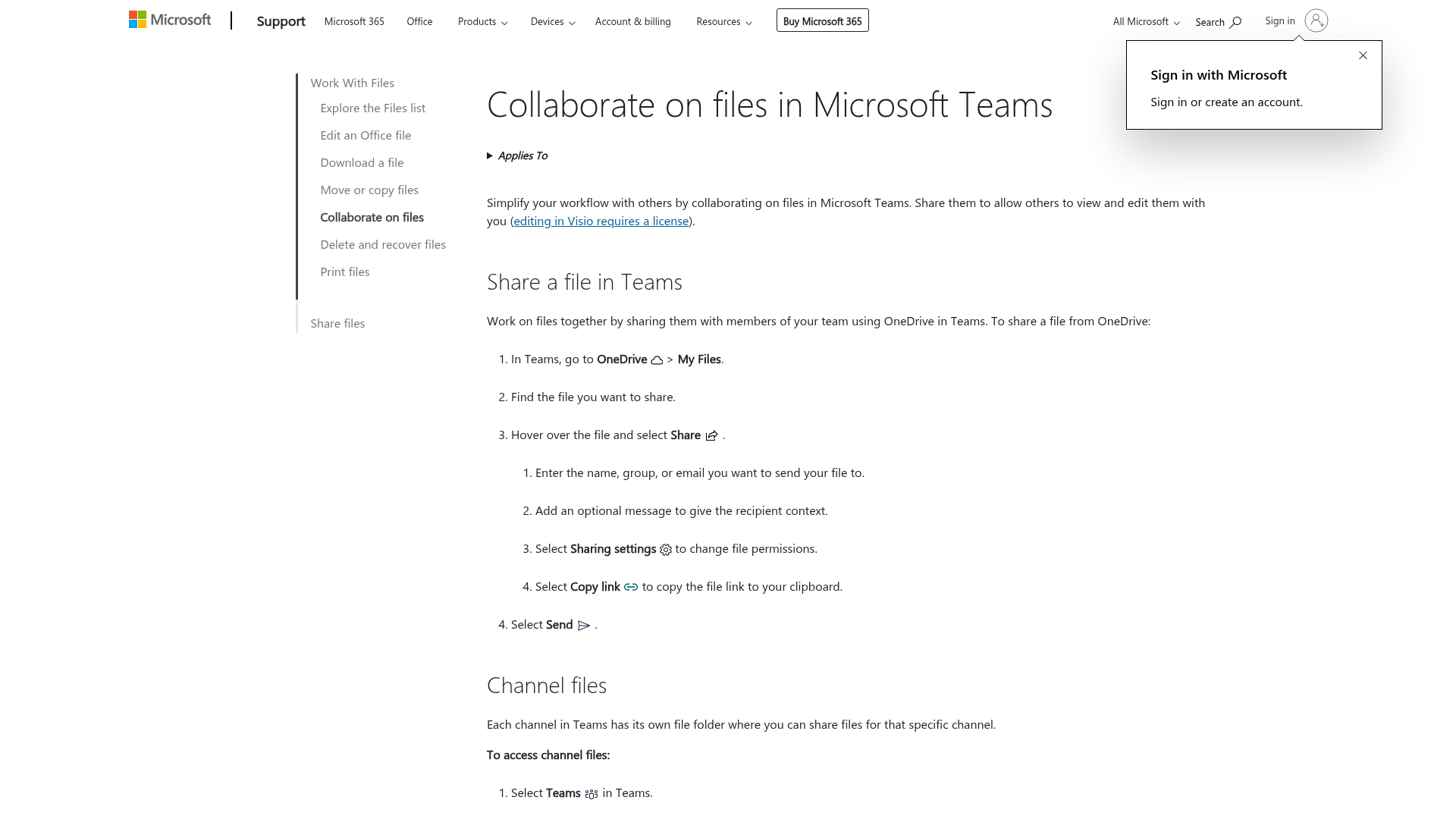
Microsoft Teams connects collaboration to channels, files, OneDrive, and SharePoint. Shared files in a channel appear in the channel’s file area, and teams can upload, edit, sync, and manage them there.
One useful detail from the competitor research: Teams channel files are backed by SharePoint, which means you can access more advanced file controls, syncing, and recovery features through SharePoint when needed.
Typical Teams workflow
In Teams, users can:
- go to a Team or Channel
- open the Files or Shared tab
- create a new folder or upload files
- share items with people or groups
- manage permissions through link settings
- open files in Teams, desktop apps, or SharePoint
That works well for organizations already deep in Microsoft 365. But for teams that want faster browsing, cleaner file organization, simpler sharing, and more intuitive asset visibility - especially for images and documents - AssetHQ offers a more focused experience.
How some organizations train users to collaborate in Teams
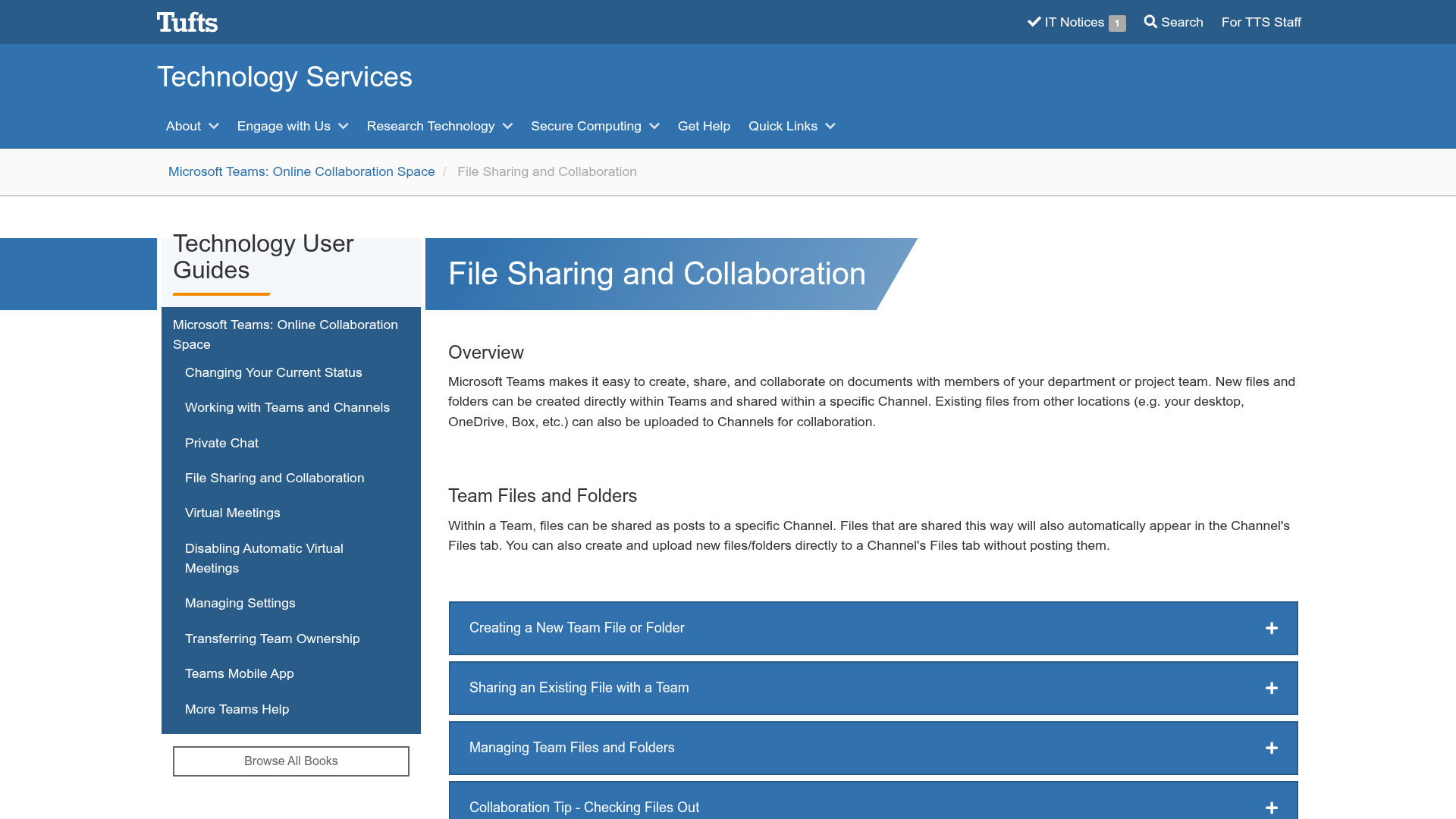
University IT guides often emphasize a practical habit: create or upload files directly within the right channel so everyone knows where shared material lives. They also point users to file actions such as rename, move, download, copy link, open in SharePoint, and recycle bin recovery.
That guidance is solid because it reinforces one core principle: collaboration works best when the folder structure is intentional, not accidental.
How to organize files for secure, efficient collaboration
Technology helps, but structure is what keeps collaboration efficient.
Use permission tiers
A simple permission model might look like this:
User Type | Recommended Access |
|---|---|
Core project team | Edit |
Department stakeholders | View |
External clients | View via expiring link |
Admin/owners | Full control |
Separate working files from final assets
Mixing drafts and approved files causes expensive mistakes. Create separate folders for in-progress and approved content.
Make previews part of the workflow
For image-heavy teams, preview matters. If users have to download five files just to find the right one, your system is slowing them down. AssetHQ’s image preview and file management experience makes browsing faster and less frustrating.
Use secure links instead of email attachments
A secure link is easier to revoke, track, and control than a forwarded attachment. Expiring links and access control are especially valuable when sharing sensitive documents, campaign materials, or client files.
Review the folder structure quarterly
Shared folders decay when no one maintains them. Set a simple recurring review to:
- archive old files
- remove duplicate folders
- adjust permissions
- standardize names
- confirm owner responsibility
Common mistakes when teams create shared folders
Creating too many top-level folders
Too many choices create confusion. Start broad, then add depth only where needed.
Giving everyone edit access
This seems collaborative but usually creates risk. Access should match responsibility.
Using inconsistent names
If one person names files by date, another by campaign, and another by initials, the folder becomes unpredictable.
Storing everything in chat only
Chat attachments are easy to lose. Important files should live in a stable, browsable folder structure.
Forgetting ownership
Every shared folder should have a clear owner who keeps it organized and reviews permissions.
The best setup for small businesses and startups
Small teams don’t need enterprise complexity. They need:
- simple folder structure
- fast uploads
- reliable access
- secure sharing
- easy collaboration
- affordable pricing
- room to grow
That’s the exact gap many traditional tools leave open. Some are too lightweight for serious control. Others are too bloated for lean teams.
AssetHQ fits the middle perfectly: professional file storage and digital asset management with a clean, intuitive experience. You get organized storage for documents, images, and files; secure sharing with access control and expiring links; team collaboration for growing organizations; enterprise-grade security; fast uploads and file access; and flat pricing without hidden surprises.
If you’re deciding between Teams, Dropbox-style sharing, and a dedicated DAM
Here’s a practical way to think about it:
Need | Best Fit |
|---|---|
You live entirely in Microsoft 365 and collaborate inside channels | Microsoft Teams |
You mainly need file sharing and familiar folder sync | Dropbox-style platform |
You need simple but scalable digital asset management with strong sharing, previews, organization, and control | AssetHQ |
If your team handles a mix of documents, visuals, internal resources, and shared client files, a dedicated but easy-to-use DAM can save time immediately.
Final verdict
If you need to create a shared folder for team collaboration, start by defining the purpose, users, and access rules before you upload a single file. If the files belong to one project or team, a shared folder is usually enough. If the structure needs to outlast individuals and support multiple departments, it may be time to create a shared drive model instead.
Either way, the winning system is the one your team will actually use consistently.
That’s why AssetHQ is such a strong choice for modern teams. It gives you the simplicity small businesses want and the control growing organizations need: intuitive file management, secure sharing, image previews, scalable organization, enterprise-grade storage, and predictable pricing. If you want collaboration without clutter, AssetHQ is built for exactly that.
FAQ
How to create a Teams shared folder?
In Microsoft Teams, open the relevant Team or Channel, go to the Files or Shared tab, and create a new folder or upload files there. Once it’s in the channel, team members with access can collaborate on the same content.
How do I create a shared folder for multiple users?
Start by creating a folder with a clear purpose, then assign permissions based on who needs to view, edit, or manage the files. For best results, use a platform that supports secure sharing, access controls, and expiring links.
What is a collaboration folder?
A collaboration folder is a shared workspace for files where multiple people can access the same documents, images, or project assets. It helps teams stay aligned by keeping everything in one organized location.
How to create a shared folder with colleagues?
Create the folder in your file platform, add your colleagues by name or email, and set the right level of access such as view-only or edit. Keep the structure simple so everyone knows exactly where files belong.
How do I create a shared folder for multiple users?
Use a folder structure that is easy to understand, then share it with the relevant people using role-based permissions. The best shared folders also include consistent naming, separate draft and final sections, and an archive to keep things organized over time.
How do you create a folder in Microsoft Teams?
Go to the correct channel in Teams, open the Files tab, and choose the option to create a new folder. Naming it clearly and storing files in the right channel makes collaboration much easier for the whole team.
Related Posts

Cloud Storage for Teams: Best Shared Options
Discover cloud storage for teams, compare top shared options, key features, and security tips to choose the best fit today now.
min read
Best File Sharing App for Easy Large File Transfer
Best File Sharing App for Easy Large File Transfer If you regularly send videos, design files, contracts, presentations, or folders full of project assets, you already know the problem: email attachments are too small, generic cloud drives get messy fast, and many transfer tools make sharing feel harder than it should be. The best file sharing app should do more than move files from point A to point B. It should make large file sharing simple, secure, fast, and organized - especially if you wo
min read
Online Document Sharing Made Simple
Online Document Sharing Made Simple If your team is still emailing attachments back and forth, losing track of versions, or wondering who has access to what, you are not alone. For solo founders, small businesses, startups, and growing teams, online document sharing should make work easier - not add more confusion. A modern online document sharing platform helps you store files in one place, organize them clearly, share them securely, and collaborate without the mess of scattered folders and o
min read