Cloud Storage and Backup for Small Teams
Cloud Storage and Backup for Small Teams Small teams need two things at the same time: a simple way to work with files every day and a reliable way to recover when something goes wrong. That is where many businesses get stuck. They buy a cloud storage tool thinking it is a backup system, or they set up backup software that is terrible for day-to-day collaboration. The result is familiar: files scattered across laptops, shared drives, inboxes, and messaging apps; confusion about the latest vers
Cloud Storage and Backup for Small Teams
Small teams need two things at the same time: a simple way to work with files every day and a reliable way to recover when something goes wrong. That is where many businesses get stuck. They buy a cloud storage tool thinking it is a backup system, or they set up backup software that is terrible for day-to-day collaboration.
The result is familiar: files scattered across laptops, shared drives, inboxes, and messaging apps; confusion about the latest version; and no confidence that critical documents or images could be restored after deletion, ransomware, or device failure.
This guide explains cloud storage and backup, the difference between them, what small teams should compare before choosing a platform, and how to build a setup that is secure, scalable, and easy to manage without enterprise-level complexity.
"Over 50% of small businesses go out of business within six months of a ransomware attack." - ZipDo Education
"67% of U.S. businesses experienced a cyber event in the past 12 months, with 58% of these incidents resulting in revenue loss." - QBE North America
Why small teams need both cloud storage and backup
For a solo founder or a growing team, file chaos shows up fast. Marketing assets live in one place, contracts in another, product screenshots on personal desktops, and “final” versions in five different folders.
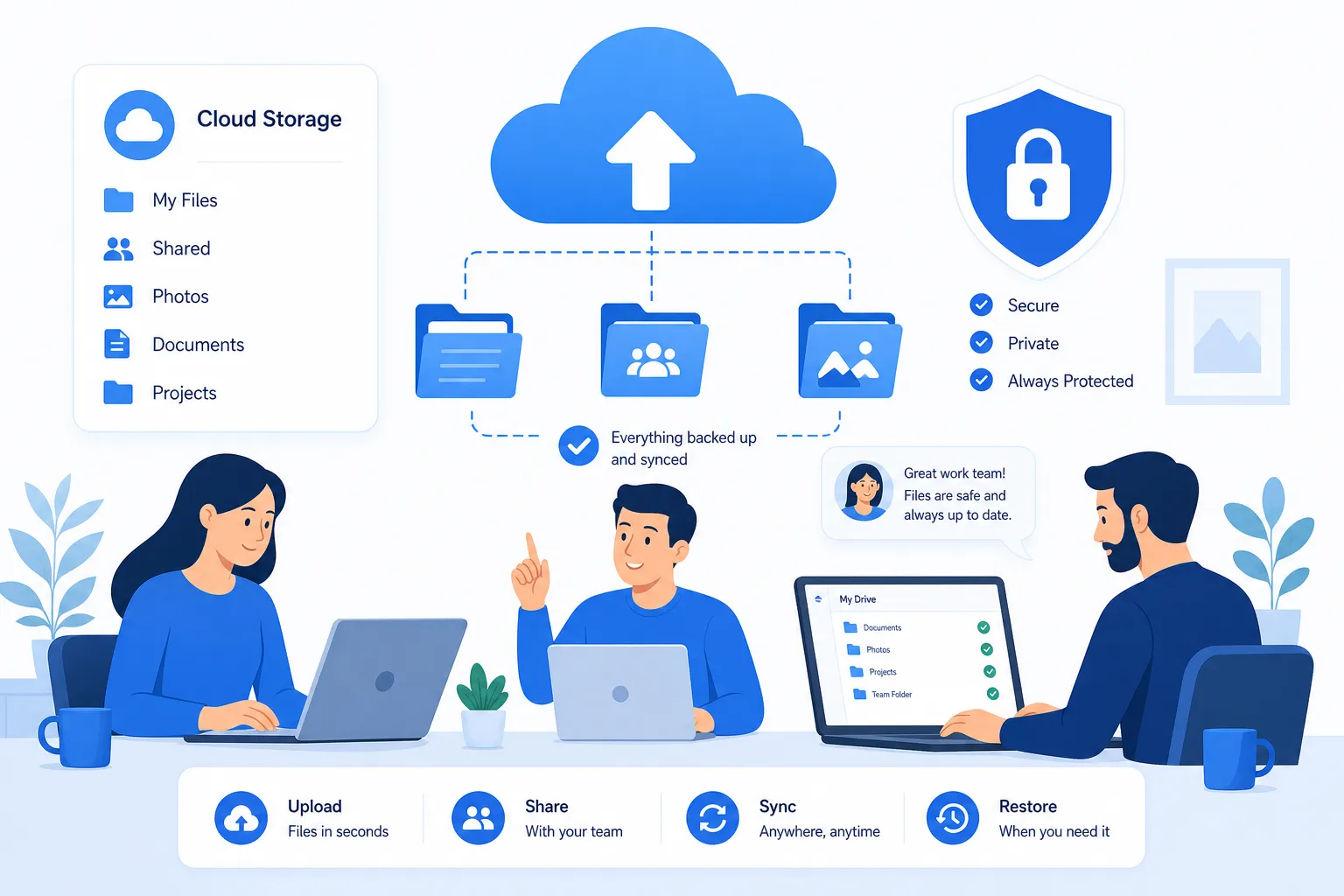
Cloud storage solves part of that problem by giving your team a shared, organized, accessible place to work. Backup solves a different problem: protection and recovery.
You need both because these are different business risks:
- Collaboration risk: people cannot find, share, or update files quickly
- Version risk: teams overwrite or lose the latest work
- Security risk: files are shared without controls
- Continuity risk: deleted, corrupted, or encrypted data cannot be restored
- Growth risk: the system becomes messy and expensive as the team scales
For small teams especially, the best setup is one that is:
- easy to understand
- fast to adopt
- secure by default
- affordable without surprise fees
- flexible enough for both daily work and disaster recovery
That is why many growing businesses separate their strategy into two layers:
- Cloud storage / file management for active work
- Backup for recovery and resilience
Cloud storage vs backup: what is the difference?
This is the most important distinction to understand.
What cloud storage does
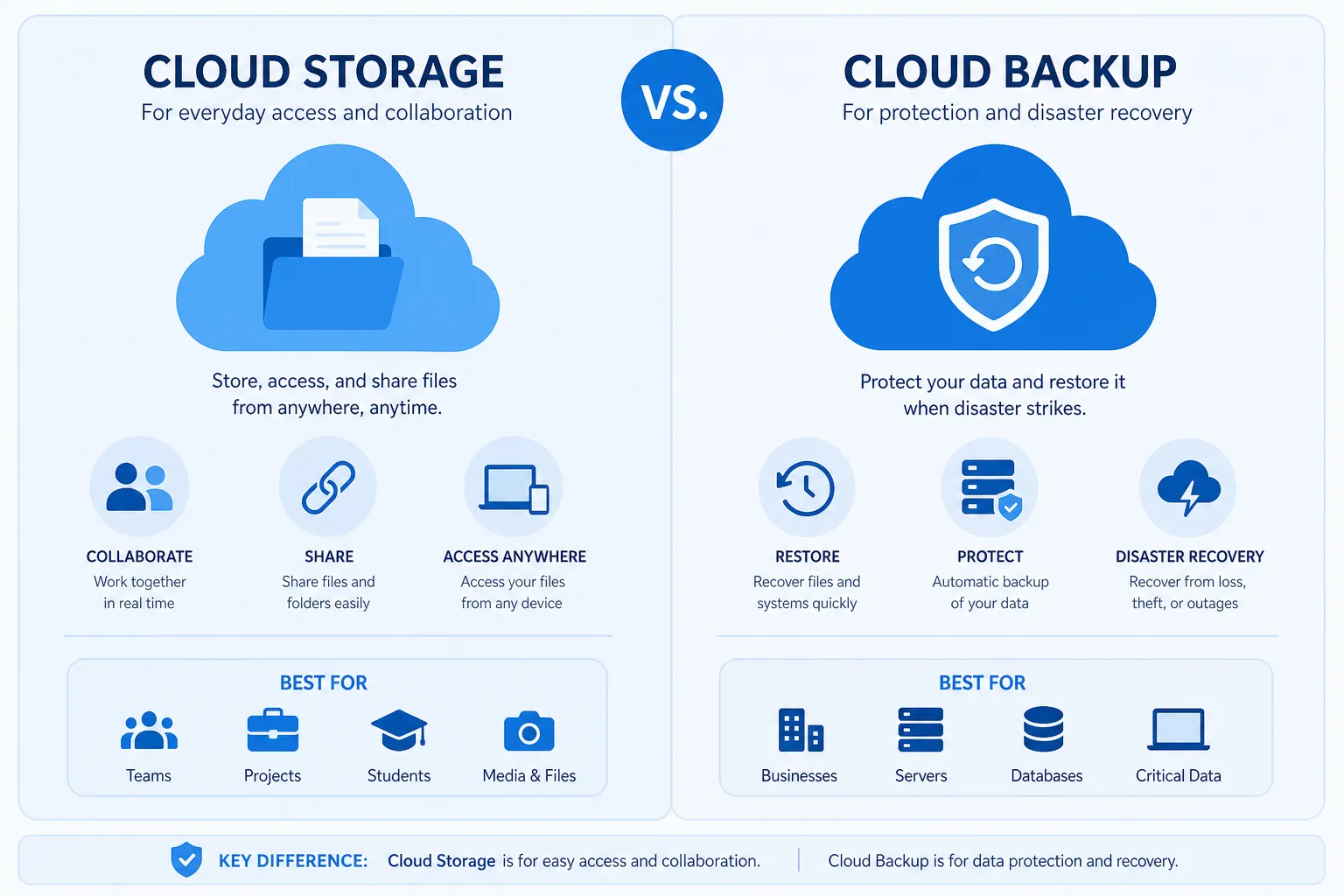
Cloud storage is designed for access, organization, and sharing. It gives teams a central place to store documents, images, videos, and other files so they can be reached from anywhere.
Typical cloud storage strengths include:
- shared folders
- file previews
- team access
- link sharing
- syncing across devices
- comments and collaboration
- fast uploads and downloads
In other words, cloud storage helps your team use files.
What backup does
Backup is designed for restoration. It creates recoverable copies of files, systems, or devices so you can roll back after accidental deletion, corruption, malware, hardware failure, or other incidents.
Typical backup strengths include:
- scheduled backups
- point-in-time recovery
- version history
- archive retention
- device or server backup
- ransomware recovery support
- full restore options
In other words, backup helps your team recover files.
Simple example
If a designer needs to upload campaign images, preview them, organize them into folders, and share an expiring link with a client, that is a cloud storage / DAM use case.
If the same designer’s laptop fails and the team needs to restore prior versions of those image files, that is a backup use case.
Quick comparison table
Feature | Cloud Storage | Backup |
|---|---|---|
Main purpose | Access and collaboration | Recovery and protection |
Best for | Shared files, documents, images, active work | Deleted files, ransomware, device failure |
File organization | Strong | Usually limited |
Team sharing | Strong | Usually not core |
Version restore | Sometimes available | Core feature |
Point-in-time recovery | Rare | Common |
Daily workflow support | Excellent | Limited |
Disaster recovery | Limited | Excellent |
The biggest mistake small teams make
The most common mistake is assuming one tool does everything.
A team may use a file-sharing app and think, “We are backed up.” But syncing is not the same as backup. If a corrupted file or ransomware-encrypted file syncs everywhere, the damage can spread everywhere too.
The opposite mistake also happens. A company buys a powerful backup solution, but it is too clunky for daily work. Team members then bypass it with email attachments, desktops, and personal drives. That creates new security and version-control problems.
The practical answer is:
- use cloud storage / digital asset management for active file organization and collaboration
- use backup for business continuity and recovery
What small teams should look for in cloud storage and backup
Competitor content often focuses heavily on storage size and price. Those matter, but they are not enough. Small teams should compare tools based on how well they support real work, not just raw capacity.
1. Simple file organization
When your team is small, simplicity matters more than feature overload. You need a clean folder structure, logical permissions, and fast file discovery.
A good platform should make it easy to:
- structure folders by client, project, department, or campaign
- preview files without downloading them
- keep images, documents, and assets organized
- avoid duplicate versions and scattered files
For growing teams, this is where AssetHQ stands out. It gives businesses a simple and intuitive file management experience without the clutter of enterprise-heavy systems. Teams can keep documents, images, and shared files organized in a way that feels familiar and easy to scale.
2. Secure sharing controls
Sharing is where convenience often collides with security.
Look for:
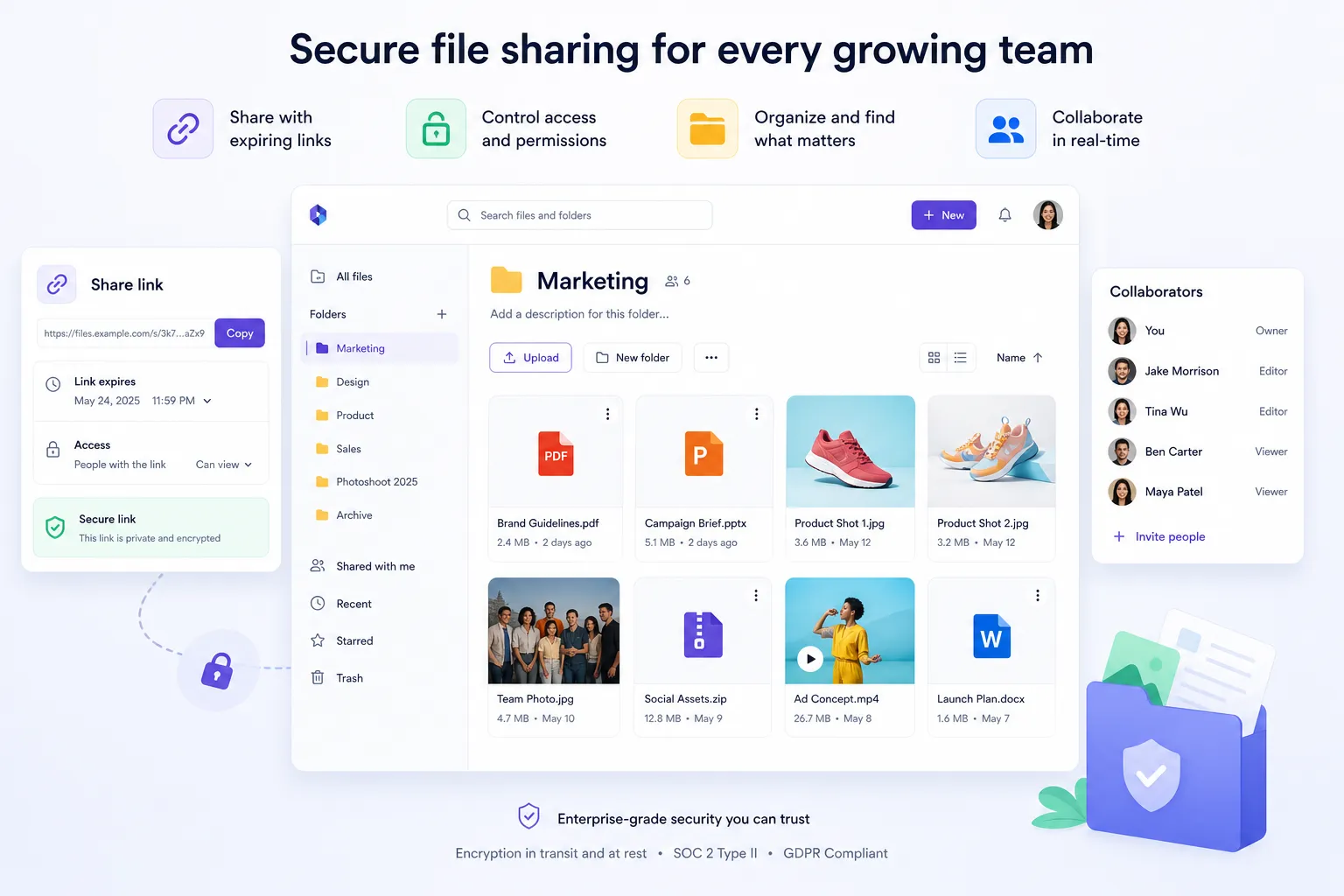
- expiring links
- password-protected sharing
- granular access permissions
- user roles
- audit visibility
- revoke access instantly
These features matter when sharing contracts, design files, brand assets, or internal documents with freelancers, clients, and partners.
AssetHQ is especially strong here because it combines secure file sharing, access control, and a straightforward user experience. That is exactly what small teams need: security that does not slow people down.
3. Collaboration features that are actually usable
Many tools add collaboration features, but small teams need them to be practical, not bloated.
Prioritize:
- shared folders
- easy user invites
- permission-based access
- fast search and retrieval
- image previews
- centralized storage for all current assets
The best system should help your team answer:
- Where is the file?
- Is this the latest version?
- Who can access it?
- Can I send it securely in 30 seconds?
4. Backup and recovery depth
For backup tools, compare the restoration side, not just the backup side.
Important questions include:
- How many file versions are kept?
- Can you restore from a specific point in time?
- How long are deleted files retained?
- Can you recover entire folders or devices?
- Is ransomware recovery possible?
- How easy is the restore workflow?
A backup that is hard to restore is not a real safety net.
5. Security and compliance basics
Small teams do not always need the most advanced enterprise compliance package, but they do need strong fundamentals.
Look for:
- encryption in transit and at rest
- access controls
- role-based permissions
- secure authentication
- data center and infrastructure security
- activity visibility
- business-grade storage protections
AssetHQ positions well here as an enterprise-grade secure storage solution that stays approachable for smaller businesses. That balance is valuable: strong protection without unnecessary technical overhead.
6. Performance and ease of use
Slow upload speeds, clumsy navigation, and confusing interfaces are productivity killers. Teams stop using systems that feel hard.
Look for platforms that offer:
- fast upload and access speeds
- clear navigation
- intuitive onboarding
- minimal training required
- consistent performance across team members
A solution should reduce friction, not add it.
7. Pricing that stays predictable
Competitors often highlight low entry pricing, but small teams need to look deeper.
Ask:
- Is pricing per user, per storage tier, or both?
- Are there hidden overage fees?
- Do key sharing or admin features require higher tiers?
- Will pricing still feel reasonable when the team doubles?
AssetHQ’s positioning is attractive here because it emphasizes affordable flat pricing with no hidden fees. For startups and lean teams, predictability is often as important as the sticker price itself.
What competitor content usually misses
The top-ranking articles cover pricing, storage limits, and general pros and cons well. But there are important gaps that small teams should not ignore.
Gap 1: Daily workflow and disaster recovery are not the same thing
Many articles blur the line between collaboration tools and backup systems. That leaves readers thinking one category can fully replace the other.
The better strategy is to build around both use cases intentionally.
Gap 2: Simplicity is a feature
A lot of lists reward tools with the longest feature list. But for solo founders, startups, and small teams, complexity can be a cost.
The right platform is often the one that the whole team will actually use consistently. That is why a simple DAM and file storage platform like AssetHQ can outperform bloated tools in real-world adoption.
Gap 3: File previews and visual asset management matter
Many cloud backup articles overlook teams that work heavily with images, screenshots, documents, and marketing assets. Visual preview support and organized asset management are critical for agencies, startups, ecommerce teams, and content teams.
AssetHQ addresses this directly with image preview and management capabilities, making it much more useful than generic storage for teams handling creative or brand files.
Gap 4: Secure external sharing is central for small businesses
For small teams, a file platform is often a client-facing tool too. Expiring links, controlled access, and easy sharing are not extras. They are central requirements.
Gap 5: Scalability should not mean “enterprise-only”
Many articles jump from consumer tools to massive enterprise systems. But growing teams need a middle path: something more structured than basic consumer storage, without the cost and complexity of traditional enterprise DAM software.
That middle ground is where AssetHQ fits naturally.
Common cloud storage and backup setups for small teams
There is no single perfect setup for every business. But most small teams fall into one of these patterns.
Setup A: All-in-one collaboration first
Best for:
- solo founders
- startups
- agencies
- content teams
- operations teams managing shared files daily
This setup prioritizes:
- organized file storage
- secure team sharing
- preview-friendly asset management
- easy access from anywhere
AssetHQ fits especially well here because it gives small teams a dependable, scalable way to manage digital assets without unnecessary complexity.
Setup B: Collaboration tool + dedicated backup layer
Best for:
- teams with critical business documents
- companies with compliance or continuity concerns
- teams storing files locally on laptops or servers too
This setup uses:
- a cloud storage / DAM platform for active files
- a separate backup solution for devices, archived files, or recovery needs
This is often the smartest long-term approach.
Setup C: Backup-first for infrastructure-heavy teams
Best for:
- teams with many devices
- businesses with server needs
- IT-led environments
This setup prioritizes:
- automated backups
- multi-device coverage
- restore capabilities
- business continuity
But even here, a backup-first strategy often still needs a simpler front-end file management system for everyday collaboration.
Comparing popular options for small teams
Below is a practical comparison of recognizable platforms and how they fit different small-team needs.
Platform | Best for | Strengths | Limitations for Small Teams |
|---|---|---|---|
AssetHQ | Simple DAM, file storage, team collaboration | Intuitive organization, image previews, secure sharing, access control, scalable simplicity, affordable pricing | May not replace deep device-level backup on its own |
IDrive | Backup-focused protection | Multi-device backup, archiving, restore-oriented features | Less ideal for clean day-to-day collaborative asset management |
Google Drive | Workspace-heavy teams | Familiar collaboration, Docs ecosystem | Can become messy at scale without structured asset management |
OneDrive | Microsoft-centric teams | Good Microsoft integration, business familiarity | Often better for document ecosystems than visual asset organization |
Dropbox | Fast sync and sharing | Easy syncing, simple sharing | Pricing can climb, organization can get messy across teams |
Box | Enterprise document management | Security and admin controls | Can feel heavy and costly for smaller teams |
Real-world examples of leading tools
AssetHQ
AssetHQ is a strong choice for small teams that want organized storage, secure sharing, image previews, and practical collaboration without dealing with enterprise bloat. It is especially useful for teams managing documents, images, and client-facing files that need structure and control.
IDrive
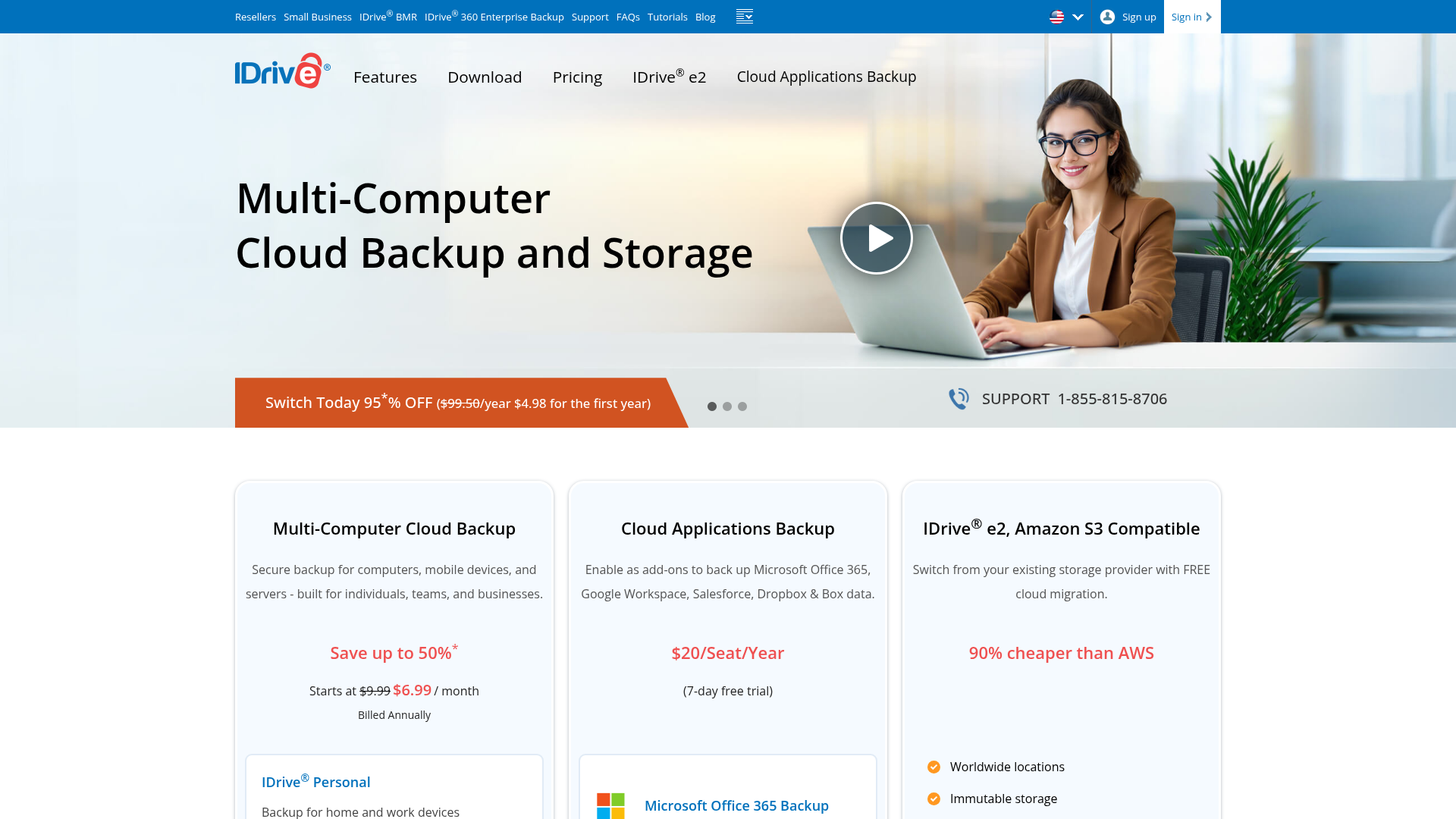
IDrive is better known for backup depth. It supports multiple devices and recovery-focused workflows, which makes it useful when restoration matters more than everyday asset browsing.
Dropbox
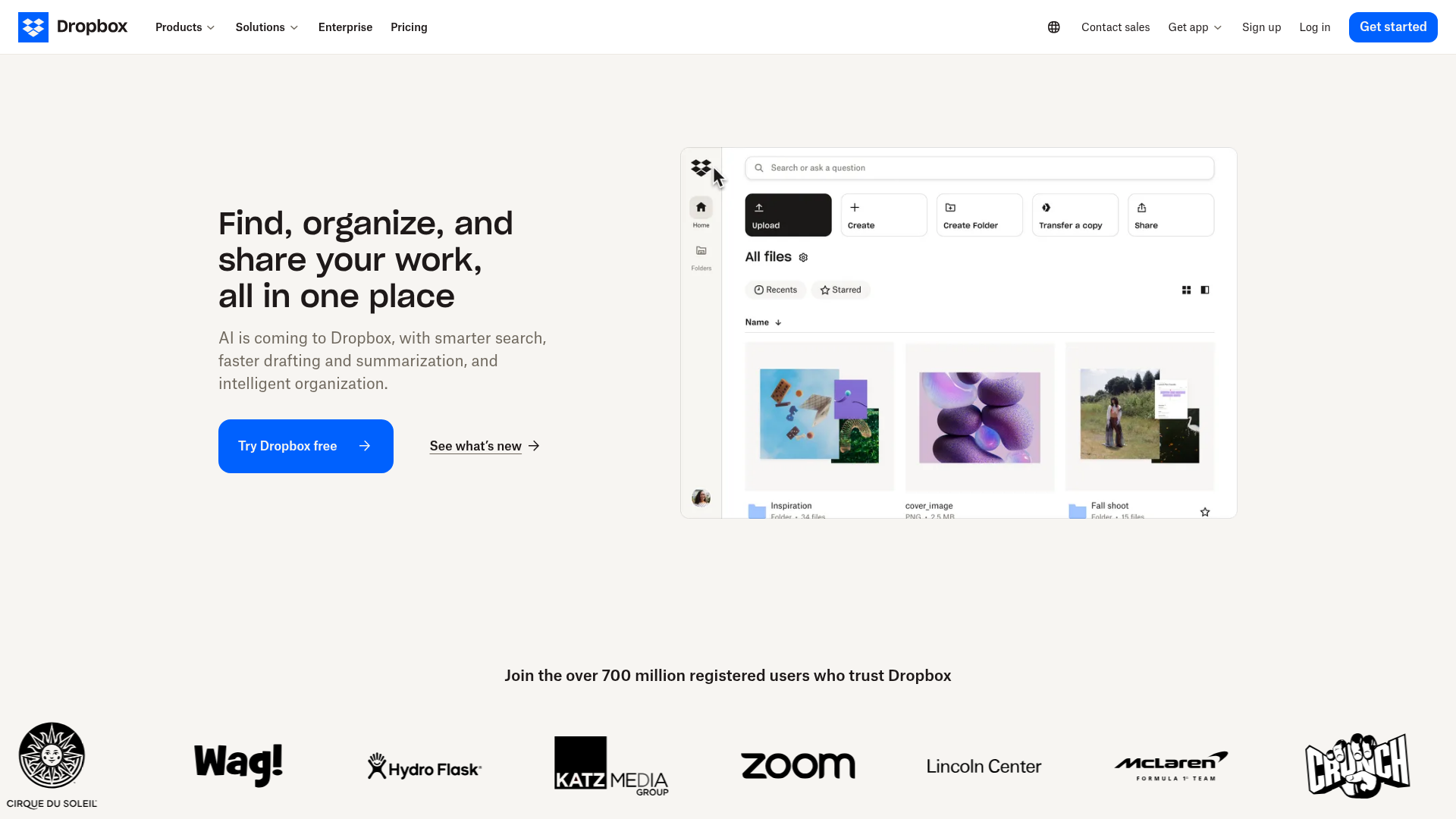
Dropbox is familiar and easy to use, especially for fast sharing and syncing. But small teams often outgrow its folder discipline unless they enforce strong internal structure.
OneDrive
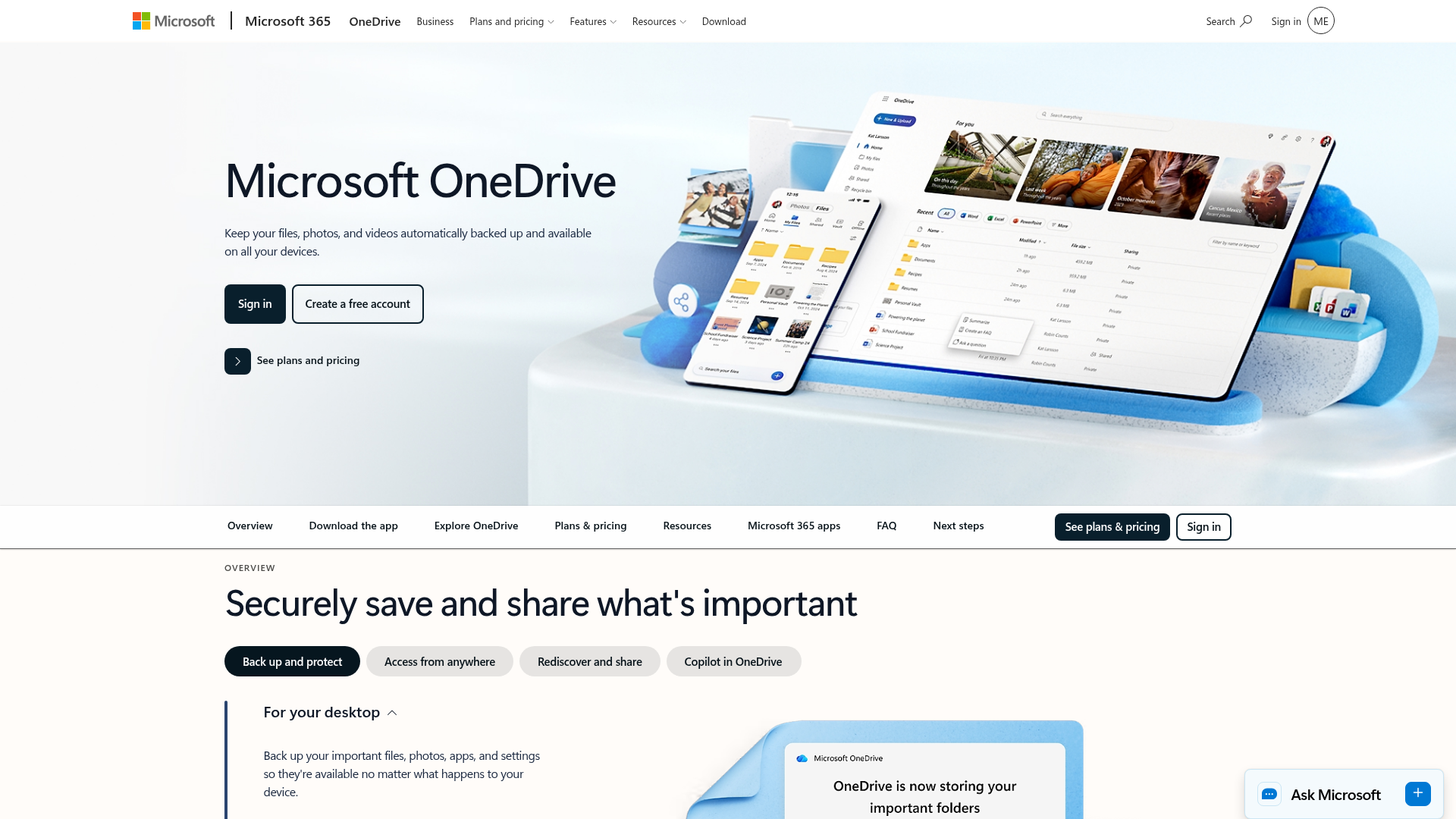
OneDrive makes sense for Microsoft 365 environments. It is strong for office documents and internal productivity workflows, though not always the most elegant for visual asset libraries.
Google Drive
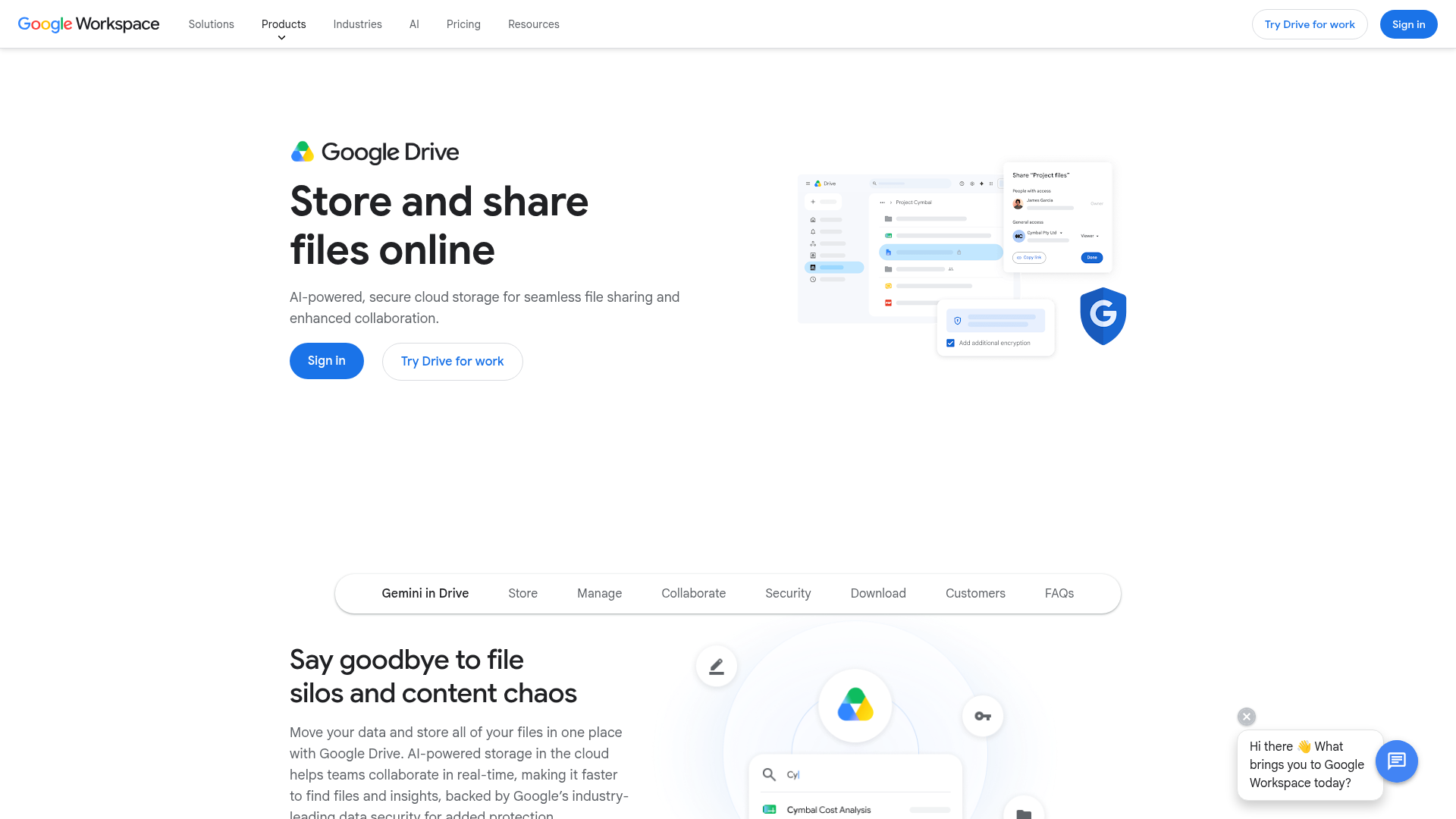
Google Drive is familiar and flexible, especially for startups already using Google Workspace. The tradeoff is that it can become disorganized without stronger file governance.
Box
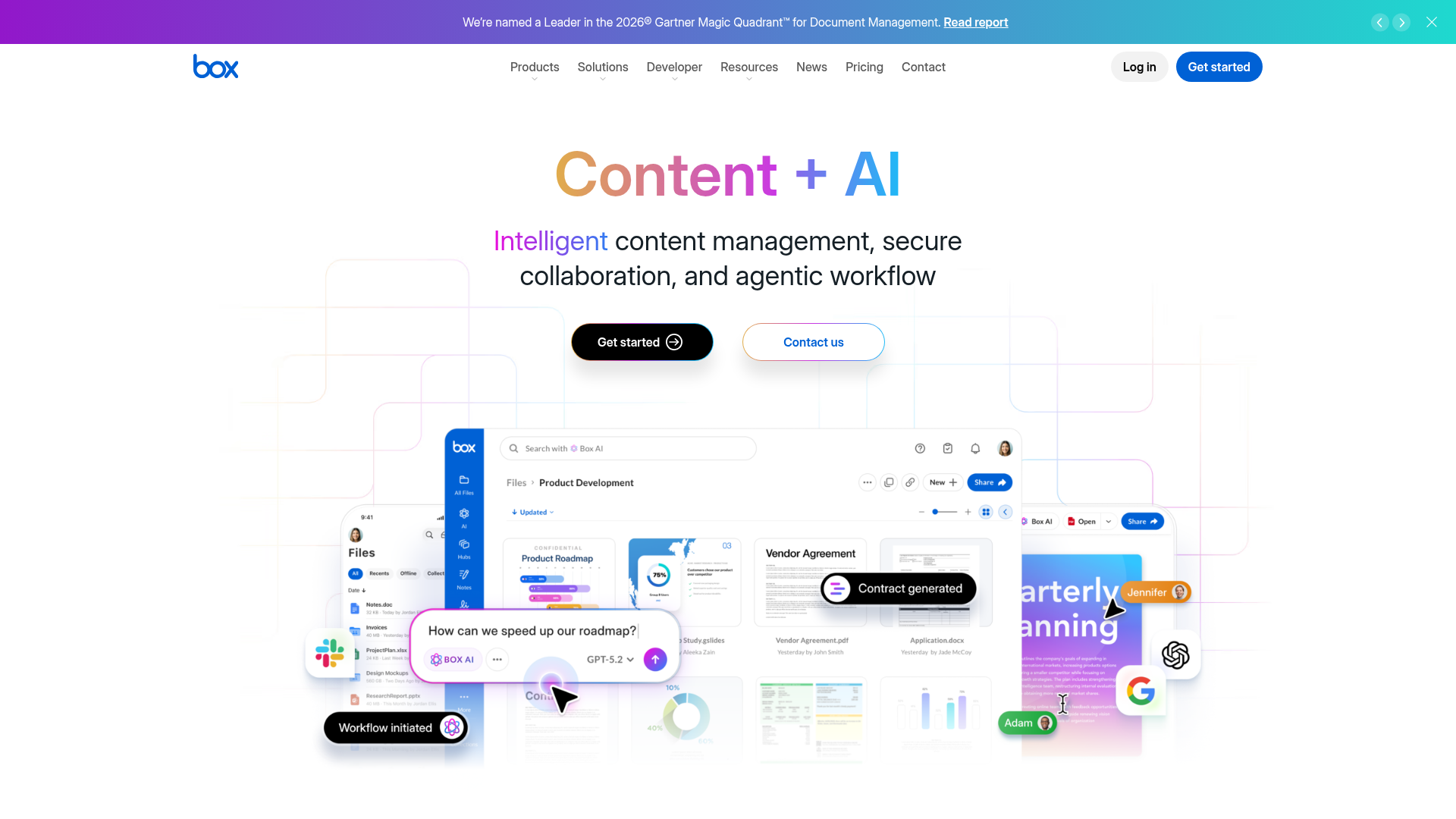
Box brings robust controls for larger organizations. For small teams, though, it can feel more complex than necessary unless advanced governance is a top priority.
How to choose the right solution for your team
A simple decision framework helps.
Choose cloud storage / DAM first if:
- your team struggles to find files
- sharing is messy or insecure
- image and document organization is a daily issue
- you need one source of truth for current files
- you want a simpler system your whole team will actually use
Choose backup first if:
- you are worried about ransomware or deletion
- you need device-level restoration
- you store key data across laptops, drives, or servers
- compliance or disaster recovery is a top concern
Choose both if:
- your team needs smooth daily collaboration
- and
- your business cannot afford data loss
For many startups and growing organizations, this is the sweet spot:
- AssetHQ for active file organization, sharing, and collaboration
- plus
- a dedicated backup layer for disaster recovery
A practical checklist for evaluating vendors
Use this shortlist before committing.
Cloud storage / file management checklist
- Is the interface simple enough for non-technical users?
- Can we organize files in a clear folder structure?
- Are image previews and file browsing easy?
- Can we share links securely with expiry or permission controls?
- Is access control easy to manage across a growing team?
- Is pricing transparent and scalable?
- Will this still work well when we have more users and more files?
Backup checklist
- How easy is it to restore deleted or damaged files?
- Does it support version history and point-in-time recovery?
- What devices or systems can it protect?
- How long are backups retained?
- Does it help with ransomware recovery?
- Can we test restores without friction?
Why AssetHQ is a smart fit for growing teams
For businesses that need better file management without the bulk of legacy enterprise software, AssetHQ solves a very practical problem.
It gives teams:
- simple and intuitive file management
- organized storage for documents, images, and files
- image preview and management capabilities
- secure file sharing with expiring links and access control
- team collaboration features for growing organizations
- enterprise-grade secure storage
- fast upload and file access
- affordable flat pricing with no hidden fees
- a scalable solution for both solo users and teams
That combination is rare. Many tools are either too basic, too backup-focused, or too enterprise-heavy. AssetHQ is valuable because it sits in the middle: professional enough for growing businesses, simple enough for everyday use.
Final verdict
Cloud storage and backup are not interchangeable. Small teams need to understand the difference if they want both smooth collaboration and real protection.
Use cloud storage to:
- organize active files
- manage digital assets
- support team collaboration
- share files securely
Use backup to:
- recover from deletion
- restore previous versions
- protect against hardware failure or ransomware
- preserve business continuity
If your team handles documents, images, and shared files every day, the best first move is to create a clean, secure, easy-to-use file environment. That is where AssetHQ shines. It offers the structure, speed, sharing controls, and scalability that startups and growing teams need, without the complexity or hidden costs of heavier systems.
If you want a smarter way to manage digital assets and team files while staying ready to scale, AssetHQ is a strong place to start.
FAQ
How to get 1TB of OneDrive for free?
You typically cannot get 1TB of OneDrive permanently for free through standard consumer plans. In most cases, 1TB comes with a paid Microsoft 365 subscription, though schools or employers may include it through an institutional account.
Is Degoo 100 GB free?
Degoo has historically offered a large free tier, but free storage offers can change over time. If you are comparing options for business use, focus less on headline free space and more on security, organization, sharing controls, and restore reliability.
Which cloud storage service is best for small business?
The best option depends on whether you need daily collaboration, backup, or both. For small businesses that want simple file organization, secure sharing, image previews, and scalable collaboration, AssetHQ is a strong fit because it avoids the complexity of enterprise-heavy systems.
How much does 1TB cost on OneDrive?
Pricing can vary by region and promotions, but 1TB of OneDrive is usually bundled with a Microsoft 365 plan rather than sold as a standalone ultra-cheap tier. Always compare the full value, including sharing, admin controls, usability, and collaboration features, not just storage size.
How do I get 100GB OneDrive for free?
There is no guaranteed permanent way to get 100GB of OneDrive for free through normal public plans. Occasionally, Microsoft may offer trials or bundled promotions, but for a business, it is better to choose a platform based on predictable pricing, security, and team workflow fit.
Related Posts

Brand Asset Management Software for Growing Teams
Discover brand asset management software for growing teams and learn how to organize files, share securely, and scale with ease.
min read
Cloud Based Digital Asset Management Benefits
Explore cloud based digital asset management benefits for secure file sharing, simpler teamwork, and organized growth. Try it today now
min read
File Sharing and Storage Made Simple for Teams
Discover file sharing and storage made simple for teams with secure access, better organization, and faster collaboration. Try AssetHQ!
min read